![logo bleu-blanc2.png]](https://blog.robotiq.com/hs-fs/hubfs/logo%20bleu-blanc2.png?height=40&name=logo%20bleu-blanc2.png)
This article explains how to integrate supported Robotiq grippers with Fanuc CRX collaborative robots using the official Robotiq plugin. It includes setup steps, supported models, plugin resources, and guidance for cases where the plugin is not available (e.g., for vacuum grippers).
Prerequisites
Before starting, make sure the following requirements are met:
-
Robot type: Fanuc CRX series
-
Robotiq Plugin and Documentation:
-
Plugin Instruction Manual: Gripper Plugin Instruction Manual for Fanuc CRX
-
Plugin Software download: Robotiq Gripper Plugin for Fanuc CRX
-
-
Gripper model: One of the following:
-
2F-85 or 2F-140
-
Hand-E
-
Hand-E C10
-
-
Required kits: Depending on your gripper model, use the corresponding CRX integration kit:
- Hand-E
-
Single Gripper Kit:
HND-CRX-KIT -
Dual Kit (X bracket):
CRX-DUAL-X-HND -
Dual Kit (Y bracket):
CRX-DUAL-HND
-
- Hand-E C10
-
Single Gripper Kit:
HND-C10-CRX-KIT -
Dual Kit (X bracket):
CRX-DUAL-X-HND-C10 -
Dual Kit (Y bracket):
CRX-DUAL-Y-HND-C10
-
- 2F-85
-
Single Gripper Kit:
AGC-CRX-KIT-85 -
Dual Kit:
CRX-DUAL-AGC-085
-
- 2F-140
-
Single Gripper Kit:
AGC-CRX-KIT-140 -
Dual Kit:
CRX-DUAL-AGC-140
-
- Hand-E
- Installation completed: Refer to the article How to install Robotiq Gripper on Fanuc CRX?
Note: The Robotiq E-Pick gripper is not supported by the Fanuc CRX plugin.
If you have an E-Pick gripper, you can find more information on this in our instruction. manual section 4.2 - Gripper Register Mapping
1. Installing the Robotiq Plugin on Fanuc CRX
-
Visit the Robotiq Support site and download the Fanuc CRX plugin.
-
Transfer the plugin to a USB drive or via the Fanuc file management interface.
-
Access the TP (Teach Pendant) interface and install the plugin per Fanuc's standard plugin setup process.
-
Once installed, the Robotiq gripper control interface will appear in the CRX UI.
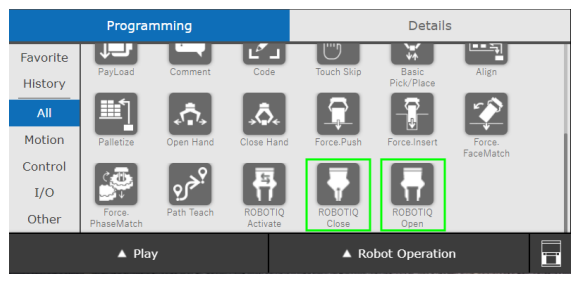
You can also refer to this video: How to Install CRX Plugin for Robotiq Grippers
2. Changing the Slave ID of the Gripper (For Dual Gripper Only)
By default, all of our Robotiq grippers have the same default Slave ID (usually ID=09). You must assign a unique ID to the second gripper:
-
Navigate to the Plugin → Robotiq Change ID
-
Connect one gripper at a time to the wrist port.
-
Change ID to 10 or another unique value.
-
Save settings and power-cycle the gripper.
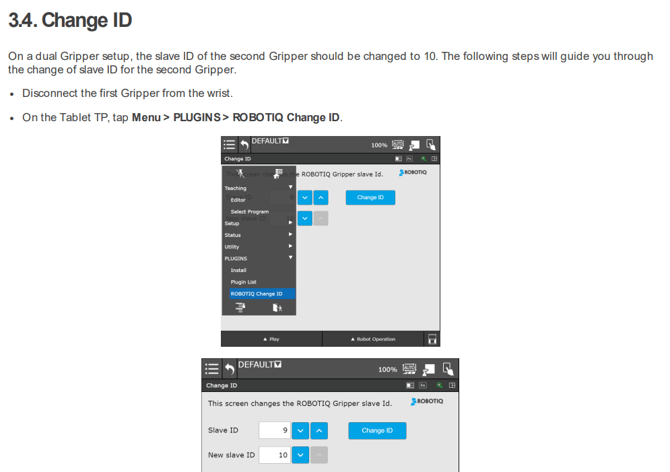
You can also refer to this video : How to change slave ID on Fanuc CRX
3. Configuring the TCP of the Gripper
When using a dual gripper setup, you need to configure and switch between two separate TCPs (Tool Center Points) in the Fanuc CRX controller:
- Navigate to the Menu → SetUp → UTool SetUp
- On the Robotiq website support, you will find the TCP and Center of Mass Table
- At Step 7, click on Direct entry or EOAT data then Offset Tool.
- On the next steps, you can set the TCP, weight and center of gravity of the first gripper
- For Dual gripper, you will need to make the operation twice.
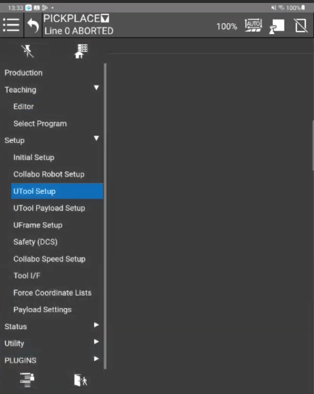
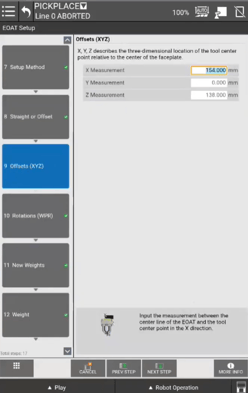
You can also refer to this video: How to set the TCP of a Robotiq Gripper on Fanuc CRX
4. Activating and Controlling the Gripper
-
Open the Robotiq plugin interface on the CRX teach pendant.
- Select the gripper (ID 09 or ID 10)
- Select the correct TCP
-
Use the plugin to activate the gripper.
-
Use available commands to:
-
Open / close each gripper independently
-
Set force and speed
-
Monitor grip status (object detected, fault, etc.)
-
Conclusion
Robotiq provides a plugin-based integration for Fanuc CRX robots, making it easy to control supported 2F and Hand-E grippers directly from the teach pendant. Always refer to the documentation specific to your gripper and CRX kit to ensure a smooth setup.
Useful Links
-
Related articles:
Updated: December 2025