![logo bleu-blanc2.png]](https://blog.robotiq.com/hs-fs/hubfs/logo%20bleu-blanc2.png?height=40&name=logo%20bleu-blanc2.png)
Context
The Smart Infeed conveyor being equipped with a pneumatic gate an an array of sensors, a multi pick application can be programmed in a simplified manner, that does not require managing or assigning sensors, nor to teach any pick position. The software also recognizes the concept of a group of 2 boxes, so programming advanced logics is now mor accurate and intuitive. This short guide will walk you through the main steps.
If you are not using Robotiq Smart Infeed, please refer to the standard Multi Pick method.
In the Installation tab:
- Make sure you are using the latest Copilot URCap (features shown are available on 3.38 and up)
-
Make sure that the TCP is setup correctly
-
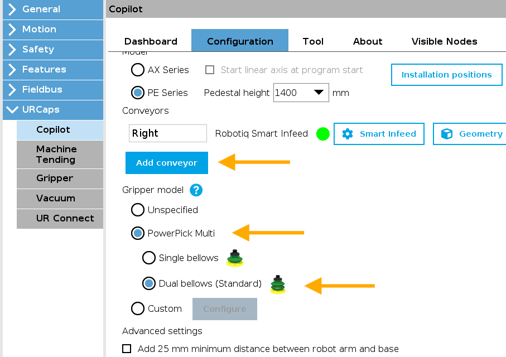
Add and configure the Smart Infeed (Installation - URCaps - Copilot - Configuration - Add Conveyor)
- Select the right gripper type, including the type of suction cups used (Installation - URCaps - Copilot - Configuration. This works best with a PowerPick Multi vacuum gripper)
In the Program:
-
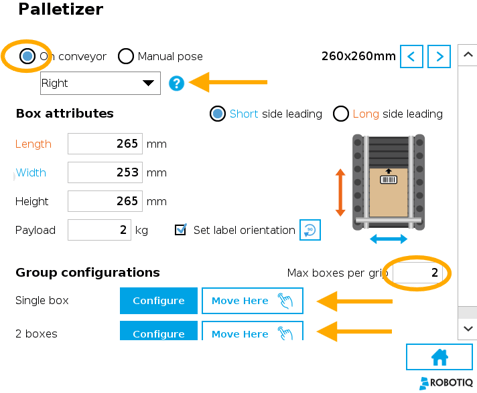
From the Palletizer node, configure the box. Select the conveyor from the drop down list and enter the box attributes (dimensions, payload label orientation). Put the box in the corner of the and try the 'Move Here' button to validate that all the values are right. You just need to configure the single box.
-
Hit 'Max boxes per grip' and enter the maximum number of boxes that you want to grip in one pick. This would typically be 2. You will notice that two Box Group Configurations now show up: 'single box' and 'two boxes'.
-
Try the ‘’Move Here’’ button for the group of two boxes. The robot will move the gripper to the center of the box group. Based on the box dimensions, the Smart Infeed automatically knows when one or two boxes are present. No sensors to configure, connect, or declare.
- Length limitations: You can pick as many boxes as you need, as long as they can be seen by the sensors. So, for picking two boxes, for example, they should not be longer than 400mm, or 15.5 inches. For 3 or more boxes, we’re looking at a max length of 240 mm, or inches.
- The pneumatic gate will always send the max number of boxes at a time.
- Set the Grip Configuration to Automatic to improve the trajectoy efficiency and to avoid the inadvertant picking of an extra box. This option is available from the box group 'Configure' menu.
During production, you will notice that the robot calculates a slightly different pick position from what was generated in the box menu. This is totally normal, and is meant to improve trajectory efficiency, reach, and number of cups in contact with the box. It will manage overhang so that the gripper does not pick more than the expected number of boxes. You can turn off this feature and manage offsets by yourself by setting the Grip Configuration to Custom.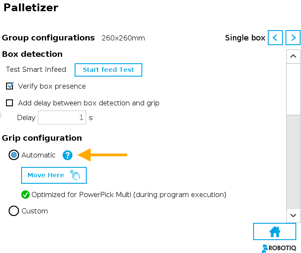
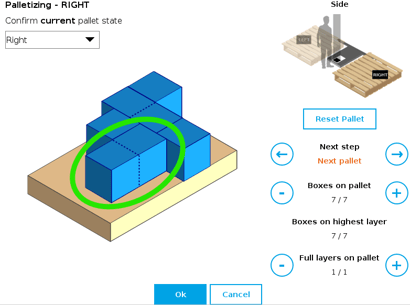
- Pallet Viewer: You will also notice that the box groups are recognized by the software as an actual count of 2 boxes.
Scripts and Variables:
- First, you will want to download the list of scripts.
- Managing gripper zones: In some instances, due to the geometry of the box and gripper, the gripper will not always use the same suction zone everytime it picks a box. In this instance, it is useful to enable the automatic selection of the gripper zones from the gripper 'vacuum' node.
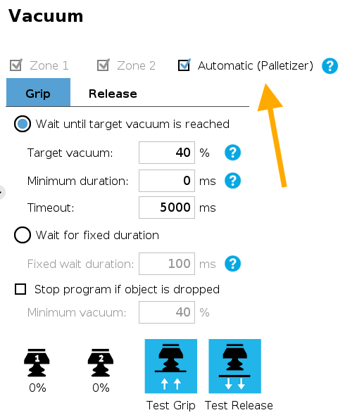
- So can also manually have a say on which vacuum sensor the gripper looks at for box detection (vacuum reached). We recommend using an 'if' statement and the following scripts:
- rq_ grip_uses_zone(): Check if the given grip zone of the vacuum
gripper is needed to grip the current box group properly - rq_grip_uses_all_zones(): Check if all grip zones of the vacuum gripper
are needed to grip the current box group properly.
- rq_ grip_uses_zone(): Check if the given grip zone of the vacuum
- Other variables:
-
rq_get_nb_box_groups_done(): This will return the number of processed box groups on the current pallet
-
rq_get_nb_boxes_in_group(): Will return the number of boxes in the current box group, that is currently being handled
-
rq_get_box_group_payload(): will return the payload of the current box group
-
This is by far the fastest and easiest way to define a multi pick application. It should only take a few minutes to setup completely.
Useful videos:
How to multi pick using Smart Infeed
Updated: December 2025