![logo bleu-blanc2.png]](https://blog.robotiq.com/hs-fs/hubfs/logo%20bleu-blanc2.png?height=40&name=logo%20bleu-blanc2.png)
Context
When the robot encounters trajectory planning or collision errors, it can stop unexpectedly or fail to execute a move. This guide explains how to troubleshoot and understand these errors using the built-in logs and external tools.
1. Start with the Manual
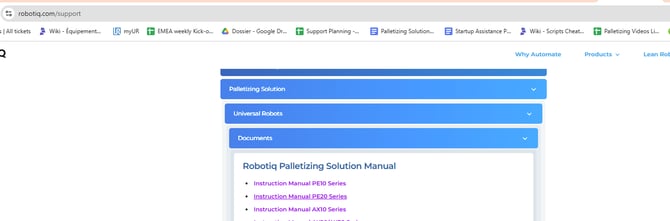
Always begin by reviewing the Troubleshooting section in the robot's user manual. It outlines standard error types and initial resolution steps. The instruction manuals are available on the Robotiq support page.
2. Understand the Error Type
The errors usually fall into two categories:
-
Trajectory Planning Errors – when the robot cannot find a valid path.
-
Collision Errors – when the collision model detects an obstacle along the path.
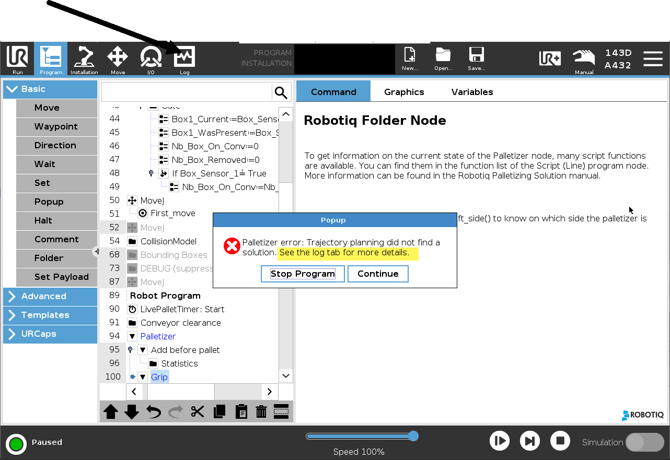
These messages are shown on-screen, and are detailed further in the Log tab. A typical on-screen message is:
Palletizer error: Trajectory planning did not find a solution. See the log tab for more details.
The popup itself does not say which object caused the problem, so the next step is always the log.
3. Check the Logs
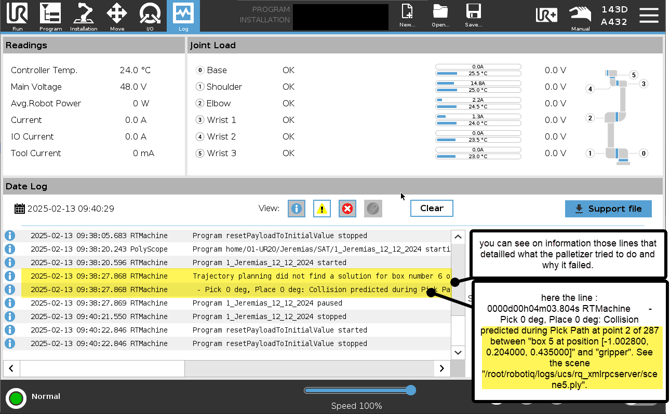
Open the Log tab and read the Date Log section:
-
Look for lines describing the failed trajectory or detected collision.
-
The logs often mention which object or model caused the conflict.
These lines detail what the palletizer tried to do, and why it failed. For example:
Trajectory planning did not find a solution for box number 6 (...)
- Pick 0 deg, Place 0 deg: Collision predicted during Pick Path at point 2 of 287 between "box 5 at position [-1.002800, 0.204000, 0.435000]" and "gripper". See the scene "/root/robotiq/logs/ucs/rq_xmlrpcserver/scene5.ply".
The box numbers, the coordinates and the scene file name change with every occurrence. Two elements matter: the two objects in conflict are named (here, a box and the gripper), and the path to the collision scene file is given. That file is what you open in the next step.
4. Visualize the Collision Scene (Advanced)
For deeper analysis:
-
Download MeshLab – a free 3D viewer.
-
Follow this Robotiq guide to load the scene and inspect the collision:
How to Consult a Collision Scene
5. Modify or Create Collision Models
If needed, you can:
-
Adjust existing models
-
Create new box-type collision models for better fit and accuracy
Use these articles to plan the bounding box you will add:
How to Create Bounding Boxes with the Online Configurator
How to Generate Box Collision Models
Conclusion
A trajectory planning or collision error is almost always a mismatch between the real cell and the collision model. The log line tells you which two objects are in conflict, the collision scene shows you where, and adjusting or adding a collision model resolves most cases.
To go further, see Defining the gripper in the Palletizer Collision Model and Improving Robot Path Planning with Advanced Collision Avoidance.
Need help? Contact Robotiq Support.
Updated: August 26, 2026