![logo bleu-blanc2.png]](https://blog.robotiq.com/hs-fs/hubfs/logo%20bleu-blanc2.png?height=40&name=logo%20bleu-blanc2.png)
Advanced Collision Avoidance is a powerful feature in the Robotiq Palletizing Solution software. It automatically calculates alternative robot trajectories when standard paths are obstructed by layout elements such as pallets, guarding, or bounding boxes. This function is essential for ensuring safe and efficient palletizing in constrained or cluttered environments.
While it's always best to maintain a clear workspace around the robot, real-world conditions often demand flexibility. Advanced Collision Avoidance expands layout feasibility when optimal conditions are not possible.
1. Testing Layout Feasibility in the Online Configurator
To test whether your layout might benefit from Advanced Collision Avoidance:
-
Open your layout in the Palletizing Configurator.
-
Add virtual obstacles such as guarding or equipment using the bounding box tool.
-
Simulate robot motion to identify if the robot's standard trajectories are blocked.
2. Creating Obstacles in the Online Configurator
Obstacles are added using bounding boxes to represent real-world layout constraints. Use this to:
-
Simulate pallets, guarding, or other nearby objects.
-
Define your expected working environment.
This step is crucial to trigger realistic collision scenarios.
To do this:
-
Open the layout window based on your project type:
-
For single recipe projects:
-
Click LAYOUT from the main screen.
-
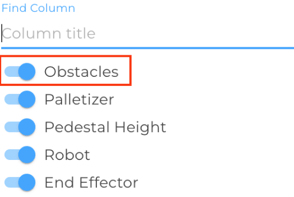
For multi-recipe projects, go to step 2 (Lines) and click CREATE LAYOUT. If this button is missing, make sure Obstacles is enabled in the COLUMNS view settings.
-
-
-
-
-
Add one or more bounding boxes to simulate real-world obstacles related to the Palletizing Solution setup.
-
Accept the layout changes and run the simulation.
-
-
- If the simulation returns no valid path, return to the layout window and enable Advanced Collision Avoidance to allow alternative trajectory planning.
Enabling Advanced Collision Avoidance in a single-recipe project:
Enabling Advanced Collision Avoidance in a multi-recipe project:
-
To define obstacles in your layout using script functions, see: How to Create Bounding Boxes with the Online Configurator
3. Understanding Trajectories
By default, the Palletizing Solution first attempts to execute motions using standard trajectories. The software evaluates two predefined trajectory options to determine whether the motion can be executed without collisions.
If both standard trajectories fail and Advanced Collision Avoidance is enabled, the Palletizing Solution switches to Path Search. In this mode, the software computes a collision-free path between the start and target positions. This computation requires more processing time than standard trajectory generation. Once a valid path is found, motion parameters are adjusted to comply with robot limitations and safety constraints.
If no valid trajectory can be computed, the robot stops and a Trajectory Error is reported.
4. Enabling Advanced Collision Avoidance in the Palletizing Solution Software
To activate the feature on your robot:
-
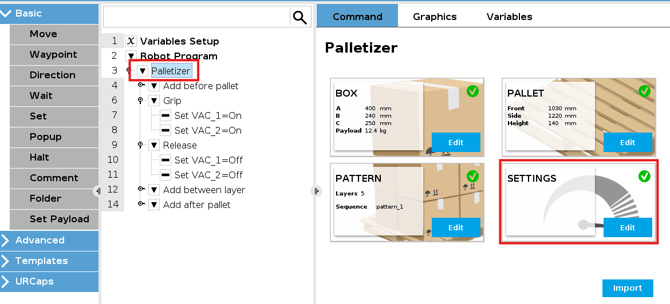
In your program tree, tap the Palletizer node.
-
Navigate to the Settings tab.
-
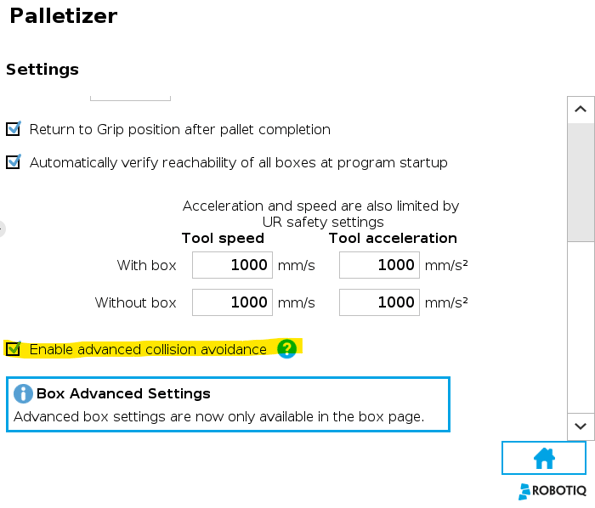
Tick the Advanced Collision Avoidance checkbox.
-
Save the program and test the robot behavior.
Conclusion
Advanced Collision Avoidance helps you build smarter, space-efficient palletizing cells by combining simulation in the Online Configurator with adaptive trajectory planning in the Palletizing Solution. Use it to overcome real-world constraints without compromising safety or performance.
Need help? Contact Robotiq Support
Updated: January 2026