![logo bleu-blanc2.png]](https://blog.robotiq.com/hs-fs/hubfs/logo%20bleu-blanc2.png?height=40&name=logo%20bleu-blanc2.png)
When the robot picks a box, the weight of the box moves from the conveyor to the robot flange. If the payload setting changes abruptly while the forces the robot measures do not match it yet, the robot can trigger a protective stop.
This article presents the recommended structure of the Grip folder for a smooth transition. It combines three elements:
- A progressive payload change with
rq_use_payload_with_box() - A compliant Force Control node
- A vacuum check with the PowerPick Grip node
Program structure
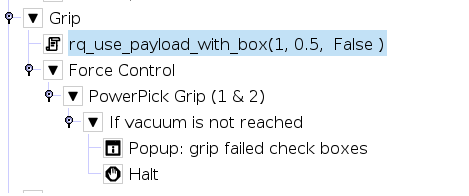
rq_use_payload_with_box(1, 0.5, False): starts the payload transition and moves on to the next lines- Force Control: keeps the robot compliant along the tool Z axis during the grip
- PowerPick Grip (1 & 2): builds vacuum on both zones and checks the vacuum threshold
- If vacuum is not reached: shows a popup and stops the program
Step 1 – Start the payload transition
Add a Script node at the top of the Grip folder with:
rq_use_payload_with_box(1, 0.5, False)
- Payload (
1): transition to 100 % of the box payload - Transition time (
0.5): duration of the transition, in seconds. Set it to the minimum grip time of your end effector - Blocking (
False): the program does not wait for the transition to end. It keeps going with the next lines, so the payload changes while the gripper builds vacuum
Note: The complete description of every palletizing script function is in the PalAdvancedProgrammingFunctions.pdf file, packaged in the same ZIP folder as the Copilot URCap, available on the Robotiq support website.
Step 2 – Configure the Force Control node
Insert a Force Control node right after the script, and place the PowerPick Grip node inside it.
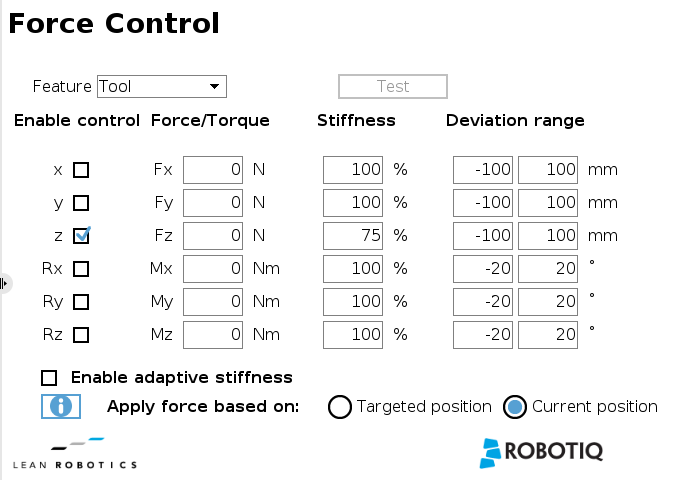
- Feature: Tool
- Enable control: z only
- Force Fz: 0 N
- Stiffness: 75 % on z, 100 % on the other axes
- Deviation range: -100 to 100 mm, -20 to 20°
- Enable adaptive stiffness: unchecked
- Apply force based on: Current position
Step 3 – Configure the PowerPick Grip node
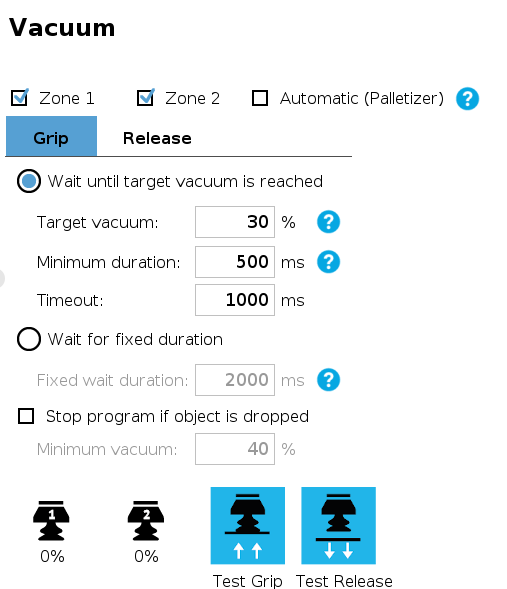
- Zones: Zone 1 and Zone 2 checked
- Automatic (Palletizer): unchecked
- Grip mode: Wait until target vacuum is reached
- Target vacuum: 30 % to be tested with your boxes reading your values
- Minimum duration: 500 ms
- Timeout: 2000 ms
- Stop program if object is dropped: unchecked
Tip: Keep the Minimum duration aligned with the transition time of Step 1 (here 500 ms and 0.5 s), so the vacuum check does not end before the payload transition.
Step 4 – Handle a failed grip
Inside the PowerPick Grip node, use the If vacuum is not reached branch:
- Add a Popup node with a clear message, for example: "grip failed check boxes".
- Add a Halt node.
If the target vacuum is not reached before the timeout, the operator sees the popup and the program stops instead of moving with a box that is not held.
Conclusion
A progressive, non-blocking payload change combined with a compliant Force Control node gives the robot time to absorb the weight of the box, and the vacuum check protects the cycle when a grip fails.
Learn more:
Need help? Contact Robotiq Support.
Updated: October 20, 2026