![logo bleu-blanc2.png]](https://blog.robotiq.com/hs-fs/hubfs/logo%20bleu-blanc2.png?height=40&name=logo%20bleu-blanc2.png)
This article explains the purpose of the ACC-TRBLS-KIT-M8 troubleshooting cable kit and how to use it to connect a compatible Robotiq gripper directly to a PC using a USB-to-RS485 converter.
The kit allows communication with grippers that only provide access through their tool port connector. This setup can be used for troubleshooting, firmware updates, diagnostics, or configuration using Robotiq software tools such as the Robotiq User Interface or the Robotiq Universal Upgrader.
This connection is not intended to be used in a production setting, as the cable wasn't designed to provide the length or flexibility to be used while a robot is in motion.
Overview
The ACC-TRBLS-KIT-M8 troubleshooting cable kit is designed to establish direct communication between a Robotiq gripper and a PC.
This kit is commonly used when:
- troubleshooting communication issues,
- updating firmware,
- validating RS485 communication,
- or configuring a gripper outside of the robot environment, such as changing it's Modbus RTU ID.
The exact wiring depends on the coupling model used with the gripper, but the same troubleshooting kit is used in all cases.
Included Components
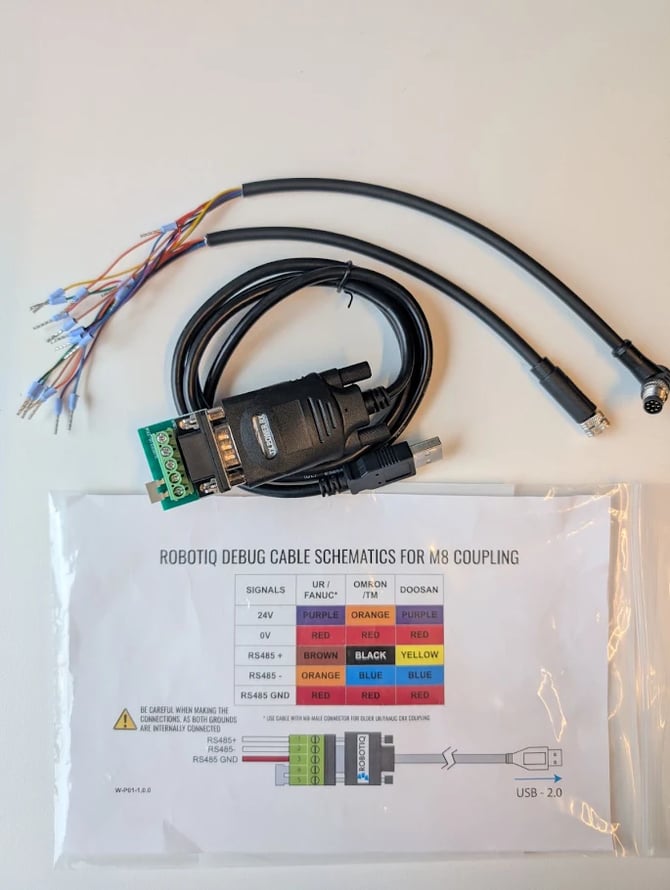
The ACC-TRBLS-KIT-M8 kit includes:
- One male M8 8-pin connector to loose wires adapter
- One female M8 8-pin connector to loose wires adapter
- One USB to RS485 converter
Not included: 24V power supply
Supported Use Cases
This kit can be used with compatible Robotiq grippers communicating through RS485 tool-port connections, including:
- Hand-E Gripper
- 2F-85 Gripper
- 2F-140 Gripper
- E-Pick gripper
The troubleshooting cable kit enables direct communication between the gripper and a PC without requiring robot control through the teach pendant.
Wiring the USB to RS485 Converter
The USB to RS485 converter must be wired according to the coupling model being used.
The following schematic shows the signal mapping for different coupling types.

Connecting the Gripper to a PC
Follow these steps to establish communication with the gripper.
1. Identify the coupling type
Identify which robot coupling or wiring standard is installed on the gripper.
2. Select the appropriate M8 adapter cable
Choose either:
- the male M8 adapter cable,
- or the female M8 adapter cable,
depending on the gripper coupling configuration.
3. Connect the loose wires to the USB to RS485 converter
Wire the signals according to the schematic:
- RS485+
- RS485-
- RS485 GND
Verify the wiring carefully before powering the system.
4. Connect the USB converter to the PC
Plug the USB converter into an available USB port on the PC.
5. Power the gripper
Ensure the gripper receives proper 24V power during communication. You can use the robot's power supply or an external power supply unit.
6. Verify COM port detection
Open the Windows Device Manager and confirm that the USB to RS485 converter appears as an available COM port.
Using Robotiq Software Tools
Once communication is established, the following software tools can be used:
Robotiq User Interface
The Robotiq User Interface can be used to:
- verify communication,
- monitor gripper status,
- test commands,
- and perform troubleshooting operations.
Robotiq Universal Upgrader
The Robotiq Universal Upgrader can be used to:
- update firmware,
- recover devices,
- and validate successful communication with the gripper.
Conclusion
The ACC-TRBLS-KIT-M8 troubleshooting cable kit provides a practical method to connect compatible Robotiq grippers directly to a PC for diagnostics, firmware updates, and troubleshooting operations.
Always validate the wiring carefully before powering the system, especially when connecting RS485 and power signals.
Need help? Contact us at https://robotiq.com/contact
Updated: May 2026