![logo bleu-blanc2.png]](https://blog.robotiq.com/hs-fs/hubfs/logo%20bleu-blanc2.png?height=40&name=logo%20bleu-blanc2.png)
This article explains how to install and use the Visual Demo Software to demonstrate the FT 300 sensor’s ability to read force and torque data. This tool is useful for basic sensor verification and calibration, but it is not designed for data logging or robot programming.
1. Install the Visual Demo Software
The Visual Demo Software is used to demonstrate the ability of the FT Sensor to read force and moment. It is not intended to be used for programming or to save or use data. It can also be used to calibrate the Sensor. Please refer to the Calibration Procedure for the Visual Demo Software (PC) section for the calibration procedure.
Software Package Installation
- Make sure that you have the latest version of the Visual Demo Software, which can be found at Robotiq Support. You can also download it here: Visual demo software
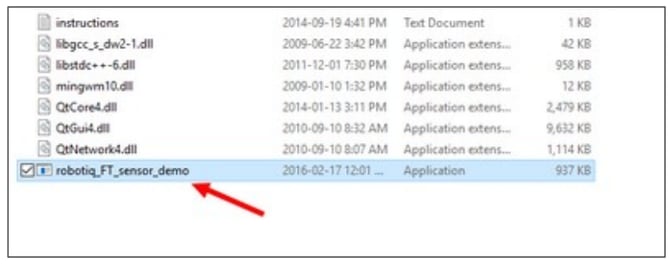
- Copy all the files from this folder onto a PC.
- Connect the USB connector to the converter attached to the PC.
Important: The Sensor must NOT be powered at this time. - Wait while the driver(s) install. After all the drivers have been installed:
- Plug the Sensor cable into the Sensor.
- Connect the Sensor cable to the power supply.
- Launch the application.
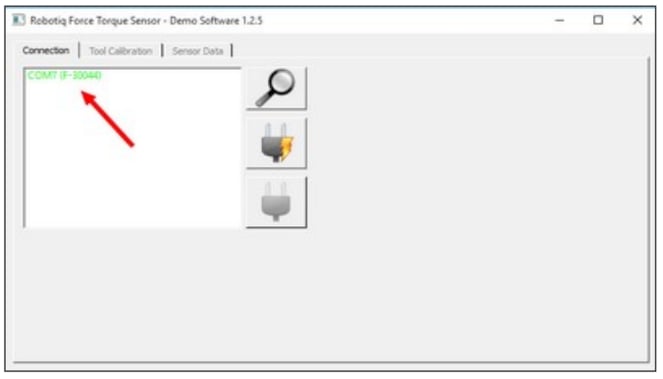
- You should see a COM port in green with a serial number, showing the Sensor connected to the PC. Click on it.
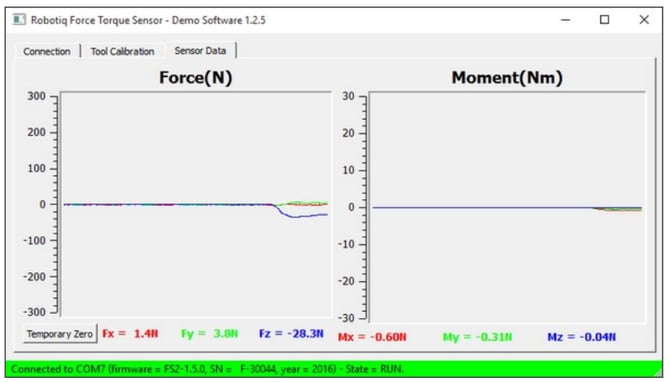
- By going into the Sensor Data tab, you can now see in real time the force and moment applied to the FT Sensor.
2. Calibrate the FT Sensor
To calibrate your FT Sensor:
-
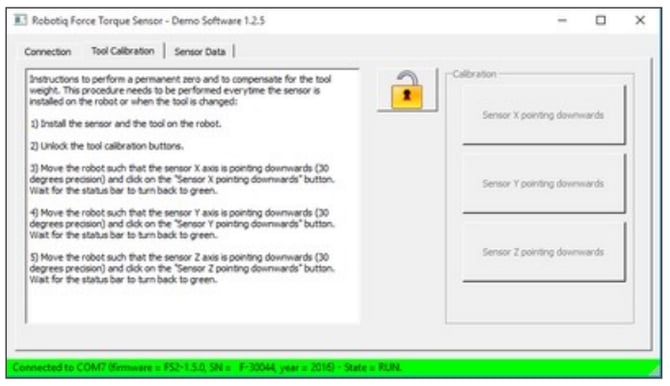
Go to the Tool Calibration tab.
-
Follow the on-screen instructions to complete the calibration.
3. Visualize Sensor Data
To view the real-time force and torque measurements:
-
Open the Sensor Data tab.
-
Observe the live values displayed for each force and moment axis.
Conclusion
With the Visual Demo Software, you can easily verify the proper functioning of your FT 300 sensor by connecting, calibrating, and visualizing real-time force and torque data. For further details or troubleshooting, visit Robotiq Support.
You can consult the Instructions Manual for the Force Torque Sensor FT-300-S by clicking the link below:
Robotiq FT-300 S Instructions Manual
Updated: December 2025