![logo bleu-blanc2.png]](https://blog.robotiq.com/hs-fs/hubfs/logo%20bleu-blanc2.png?height=40&name=logo%20bleu-blanc2.png)
Requirements
Before you begin, make sure you have the following:
-
A USB key
-
The magic file download link: >>>>
urmagic_run_x11vnc.zip -
A Windows computer with an Ethernet port
-
Physical access to the robot controller
Preparing the USB Key
-
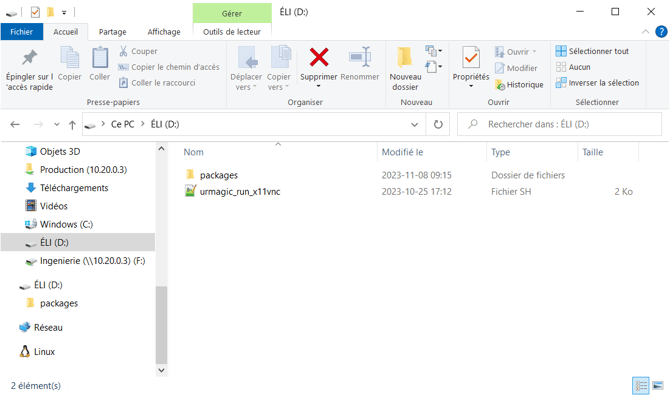
Unzip the magic file.
-
Copy the extracted file directly to the root of the USB key.
Configuring Network Settings
Setting a Static IP Address on the Robot
-
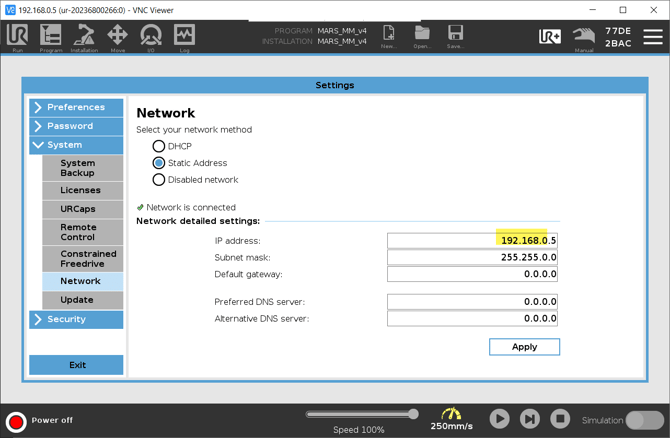
On the robot teach pendant, open the Network settings in Polyscope.
-
Select Static Address.
-
Enter the following information:
-
IP address (example):
192.168.0.5 -
Subnet mask:
255.255.0.0
-
-
Apply the changes.
Setting a Static IP Address on a Windows Computer
-
Open the Windows IPv4 Properties for the Ethernet adapter.
-
Select Use the following IP address.
-
Enter an IP address that shares the same first three numbers as the robot IP.
-
Example computer IP address:
192.168.0.100 -
Subnet mask:
255.255.0.0
-
-
Leave the default gateway empty.
-
Confirm and apply the settings.
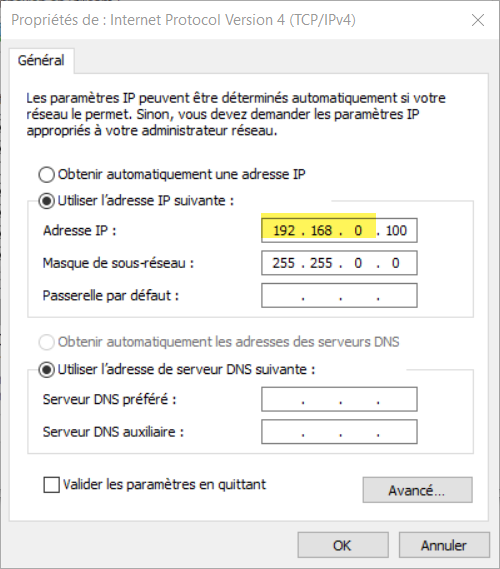
Note: Both fixed IP addresses, the computer and the robot, must share the same first three numbers for the connection to work.
Running the VNC Magic File
-
Plug the USB key into the robot controller.
-
Let the program run for 15–20 seconds.
-
Once completed, keep the USB key plugged into the robot.
Important: The USB key must remain connected at all times in order for VNC access to keep working.
Important Notes and Limitations
-
This procedure is validated for Windows computers only.
-
Removing the USB key will disable VNC access.
-
Network settings must remain unchanged to maintain connectivity.
By preparing the USB key, configuring static IP addresses on both the robot and the Windows computer, and keeping the USB key connected, you can enable and maintain VNC access on a Universal Robots controller.
Need help? Contact Robotiq Support
Updated: Ocotober 2026