![logo bleu-blanc2.png]](https://blog.robotiq.com/hs-fs/hubfs/logo%20bleu-blanc2.png?height=40&name=logo%20bleu-blanc2.png)
Context:
This article explains how to download, prepare, and install a new version of Polyscope on your UR robot. This ensures your robot is running the latest features and fixes. No technical expertise is required, just follow each step carefully.
Important: Update Polyscope only when it is truly necessary. If your robot is used with a Robotiq Palletizing Solution, always contact our Support Team first to verify compatibility between your Polyscope version and the Copilot URCap. We may have important information to help you avoid issues.
Information:
1- Download the Polyscope file
-
-
Check on Universal robot Website : https://www.universal-robots.com/download/?query=&type[]=98763
-
2- Copy the file to a blank USB drive
-
-
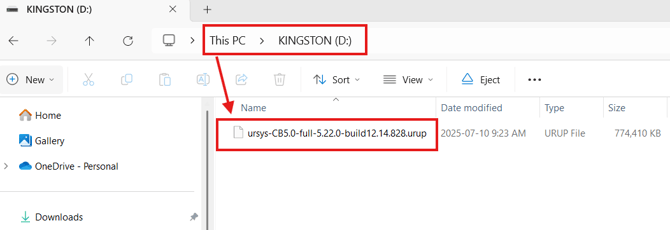
Plug a clean (empty) USB drive into your computer.
-
Copy the
.urupfile you just downloaded to the USB drive. -
Do not rename or change the file.
-
3- Install the software update
-
-
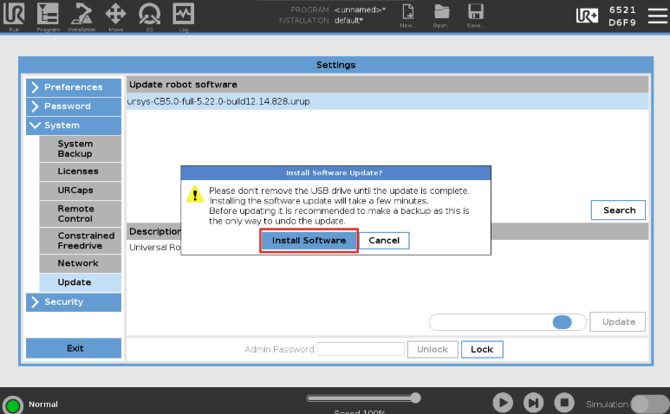
Tap Update, then Install Software.
-
The robot will reboot automatically and start installing.
-
This can take 15–20 minutes — do not turn off the robot or remove the USB drive during this time.
-
Conclusion:
REMINDER: Only update Polyscope when it is truly necessary. If your robot is used with a Robotiq Palletizing Solution, always contact our Support Team first to verify compatibility between your Polyscope version and the Copilot URCap. We may have important information to help you avoid issues.
For extra help or questions, click here to contact the Robotiq Support Team.
Updated May 26th, 2026