![logo bleu-blanc2.png]](https://blog.robotiq.com/hs-fs/hubfs/logo%20bleu-blanc2.png?height=40&name=logo%20bleu-blanc2.png)
Switching to another program on the Palletizing Workcell means loading the program with its installation file, telling the pallet viewer where the current pallet stands, and starting again. This article walks through each of those steps, including the linear axis scan and the pallet change.
Information
Load in a new program
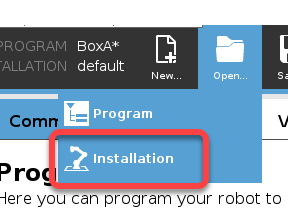
1. Select "Open" on the top of the screen.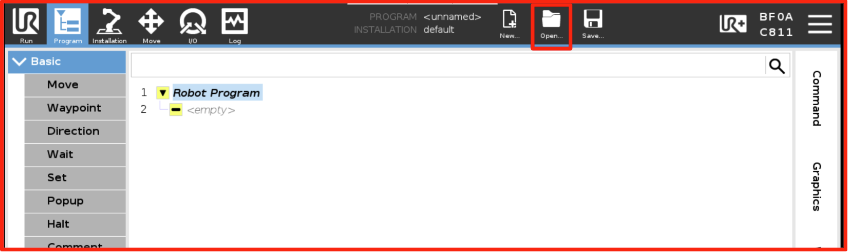
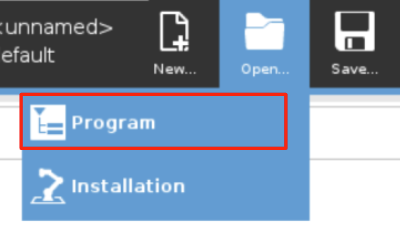
2. Select "Program" in the drop down menu.
Note :
The corresponding installation file will automatically load with the selected program.
3. Select the program and tap on "Open".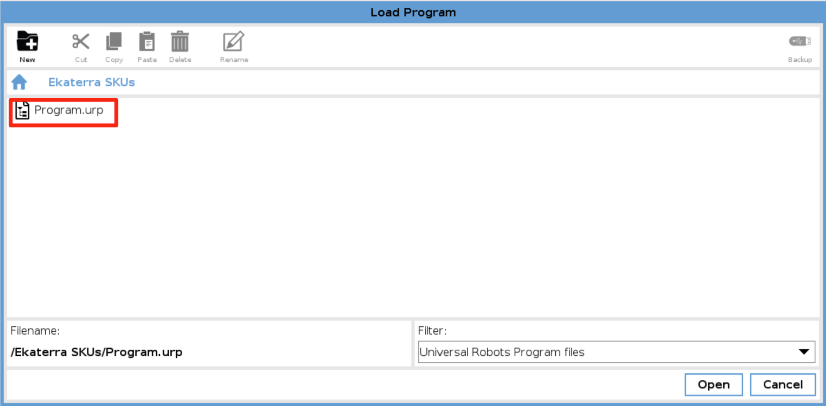
If the associated installation file can't be found, the following message is shown. Pressing "Yes" will use the currently loaded installation file.
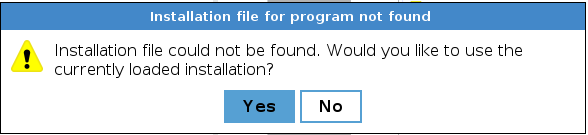
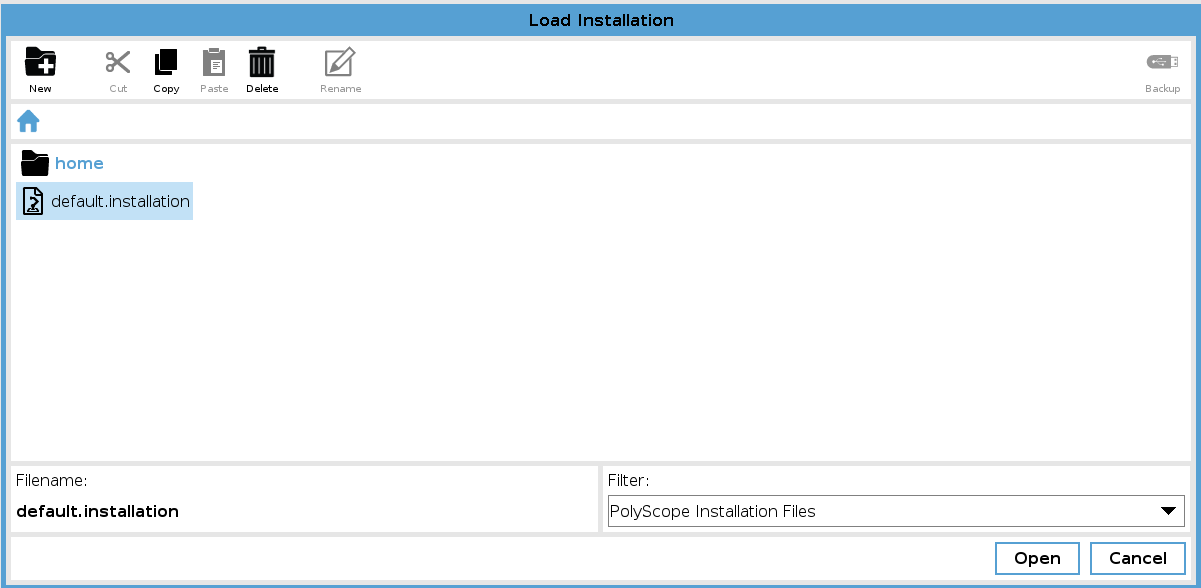
If you select "No", you can then open a new installation to be loaded before loading the program again.
Navigate to the installation file, select it then click open.
Execute a program
1. Tap the Play button at the bottom of the screen.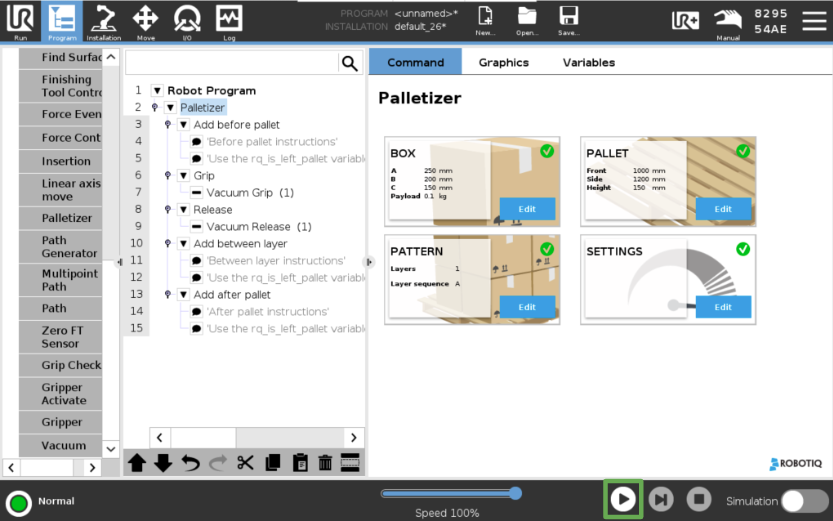
2. Select "Play from beginning". 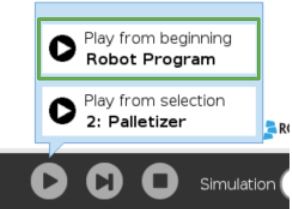
3. Edit the pallet viewer according to the actual pallet status.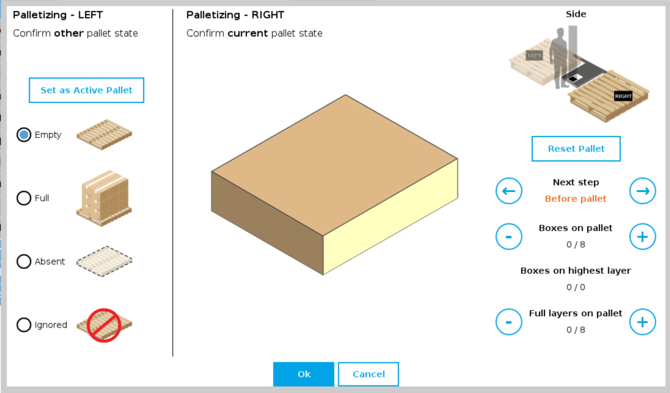
- Use the arrow buttons to add or remove boxes from the pallet.
- Message prompt specifies "RIGHT" or "LEFT" pallet.
- “Next step” describes the pallet state.
Note: When using pallets on both sides, you need to confirm the other pallet state.
4. Press "OK" to execute the program.
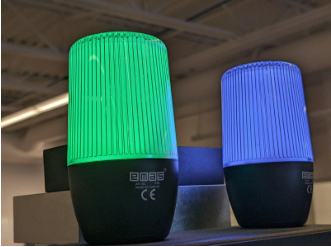
Note: One or two status lights will turn to green.
Here the palletizer is working on the LEFT pallet (green) and the RIGHT pallet is complete (blue).
How to scan the linear axis :
At program startup, you may obtain the following message: 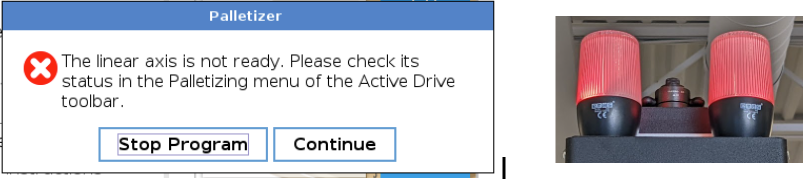
1. Locate the UR+ menu at the top right of the screen. 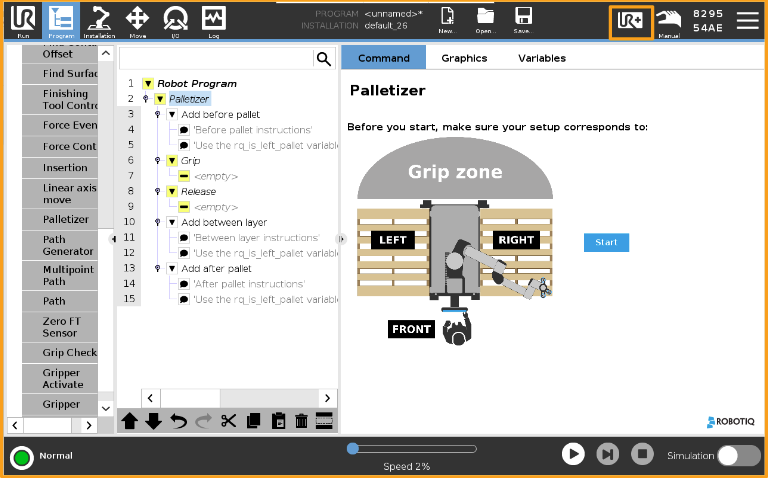
2. Go to Active Drive > Palletizing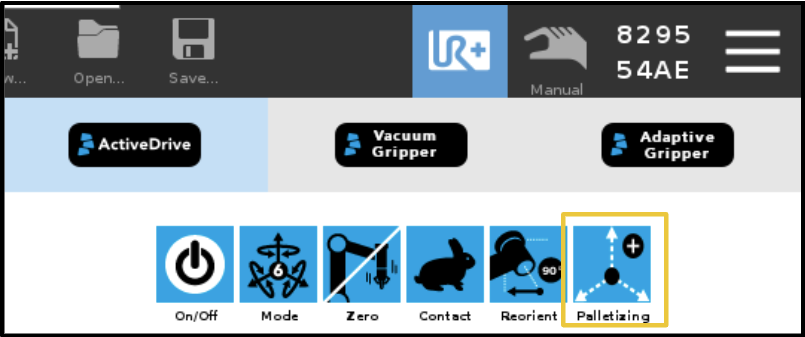
3."Scan" and/or "Start" the linear axis.
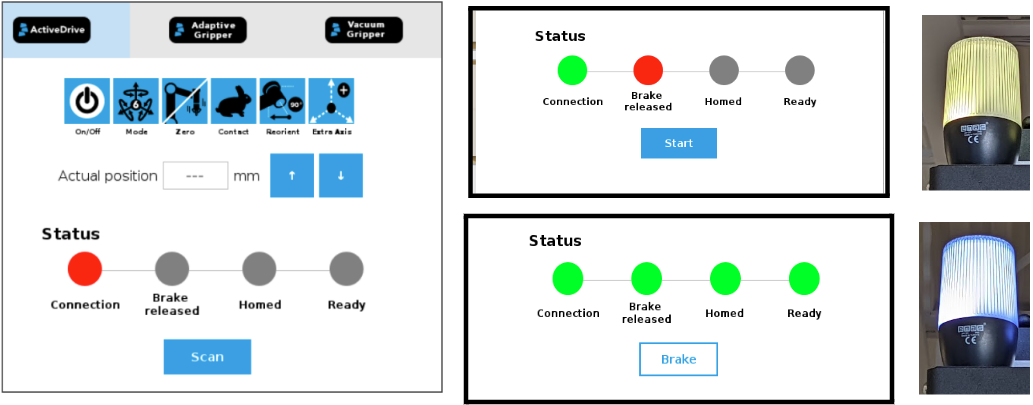
Note:
Once activated, the linear axis can be jogged using the"up" and "down" arrows.
Alternatively, you can also select the axis to automatically start at the program startup. This option requires Copilot 3.48.0 or later.
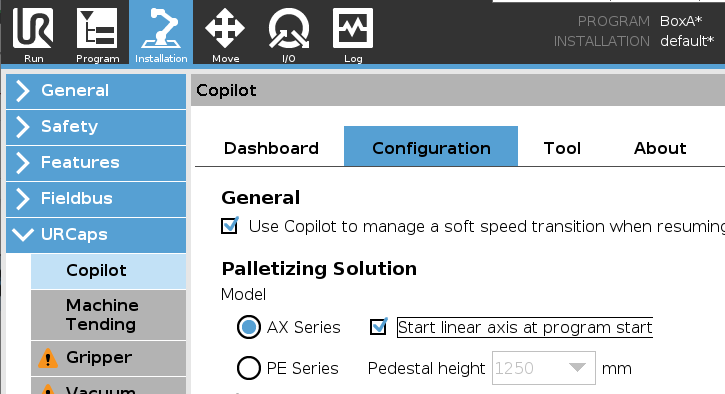
4. Restart your program.
Pallet change
When a pallet is completed, the status light is flashing blue.

There are two pallet sensors on both sides of the palletizer. 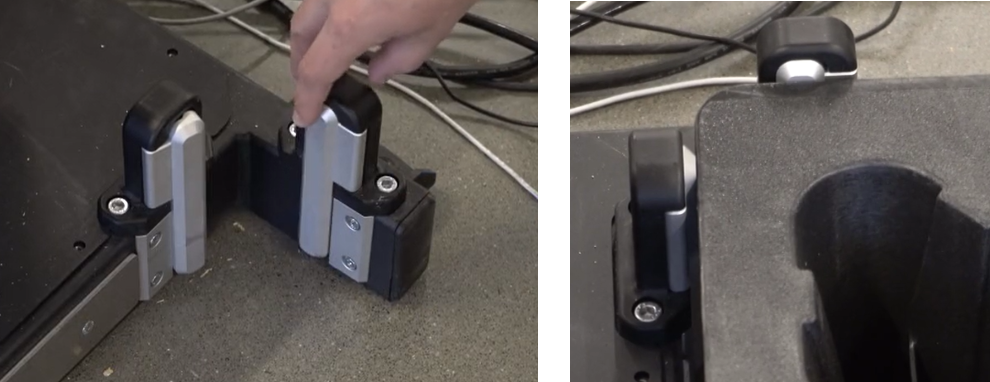
When replacing the pallet, it needs to press against both sensors for startup.
Conclusion
Switching programs on the Palletizing Workcell comes down to three things: opening the right program with its installation file, confirming the actual pallet state in the pallet viewer before starting, and making sure a replacement pallet presses against both sensors. Taking a few seconds on each avoids a restart mid-cycle.
Need help? Contact Robotiq Support.
Updated: August 25, 2026