![logo bleu-blanc2.png]](https://blog.robotiq.com/hs-fs/hubfs/logo%20bleu-blanc2.png?height=40&name=logo%20bleu-blanc2.png)
When integrating Robotiq products with a Universal Robots (UR) robot, it can be useful to control the robot externally over TCP/IP. This method relies on UR's Dashboard Server (Port 29999) and a free tool called Socket Test.
Note: This method is not officially supported by Robotiq. It is based on documentation shared by Universal Robots for informational purposes only.
Step 1: Review the UR Dashboard Server Guide
Universal Robots provides an official guide on how to use the Dashboard Server, which listens on Port 29999: UR Dashboard Server Guide (UR website)
Step 2: Download Socket Test
-
Download and install Socket Test, a tool that lets you send TCP/IP commands.
-
Open the software and configure it to connect to your UR robot's IP address on Port 29999.
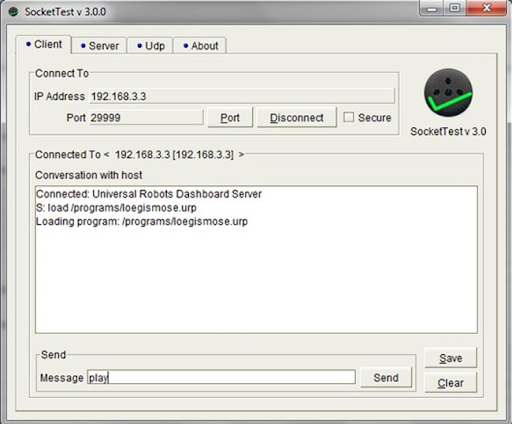
Step 3: Connect and Send Commands
Once connected, you can send dashboard server commands such as launching a robot program. Here's an example command to start a program:
load my_program.urp
play
Replace
my_program.urpwith the actual file name of your program on the robot.
Common Commands You Can Use
-
load– Loads a program -
play– Starts the program -
stop– Stops the robot -
pause– Pauses the program
Conclusion
Using Socket Test with the UR Dashboard Server provides a simple way to control your UR robot and trigger programs remotely when using Robotiq products. Be sure to verify your robot's IP address and have the program saved locally on the robot.
Need help? Contact Robotiq Support.
Updated: August 19, 2026